Extrawise documentation
Add the fields a made-to-order product needs (a name to print, a size, colour and image swatches, a file, a date and time), price every choice, and let shoppers watch the total change as they choose. This guide takes you from install to your first group, then through every field, price rule and setting.
Get started
1.1Welcome
Extrawise adds a form to your WooCommerce products. Each answer can add to the price, and the shopper sees the new total before they add the item to the cart.
- Option groups hold the fields. A group shows on all products, on categories or tags, or on single products.
- 15 field types: text, text area, number, range slider, dropdown, radio buttons, checkboxes, colour swatches, image swatches, file upload, date, time, heading, paragraph and price formula.
- Six price rules: flat amount, percentage of the product price, per character, per quantity, per file and a formula with your own field names.
- Conditions show a field only when another field has a value, or when the shopper picks a variation.
- Everywhere the order goes: cart, mini-cart, checkout, order emails, the admin order and My account. It works with the block and the classic cart and checkout, and with High-Performance Order Storage.
The total in the browser is only a preview. The store works out every add-on price again from the saved answers when the item is added, when the cart loads and at checkout, so nothing a shopper sends can change what they pay.
1.2Requirements
| Software | Version |
|---|---|
| WordPress | 6.6 or later (tested up to 7.1) |
| WooCommerce | 9.0 or later (tested up to 11.3) |
| PHP | 8.1 or later |
| Browsers | The current versions of Chrome, Edge, Firefox and Safari, on desktop and phone |
Extrawise works with any theme that supports WooCommerce, with both block themes and classic themes. File uploads use your server's upload limit; the store check on the Settings screen shows it.
1.3Install and update
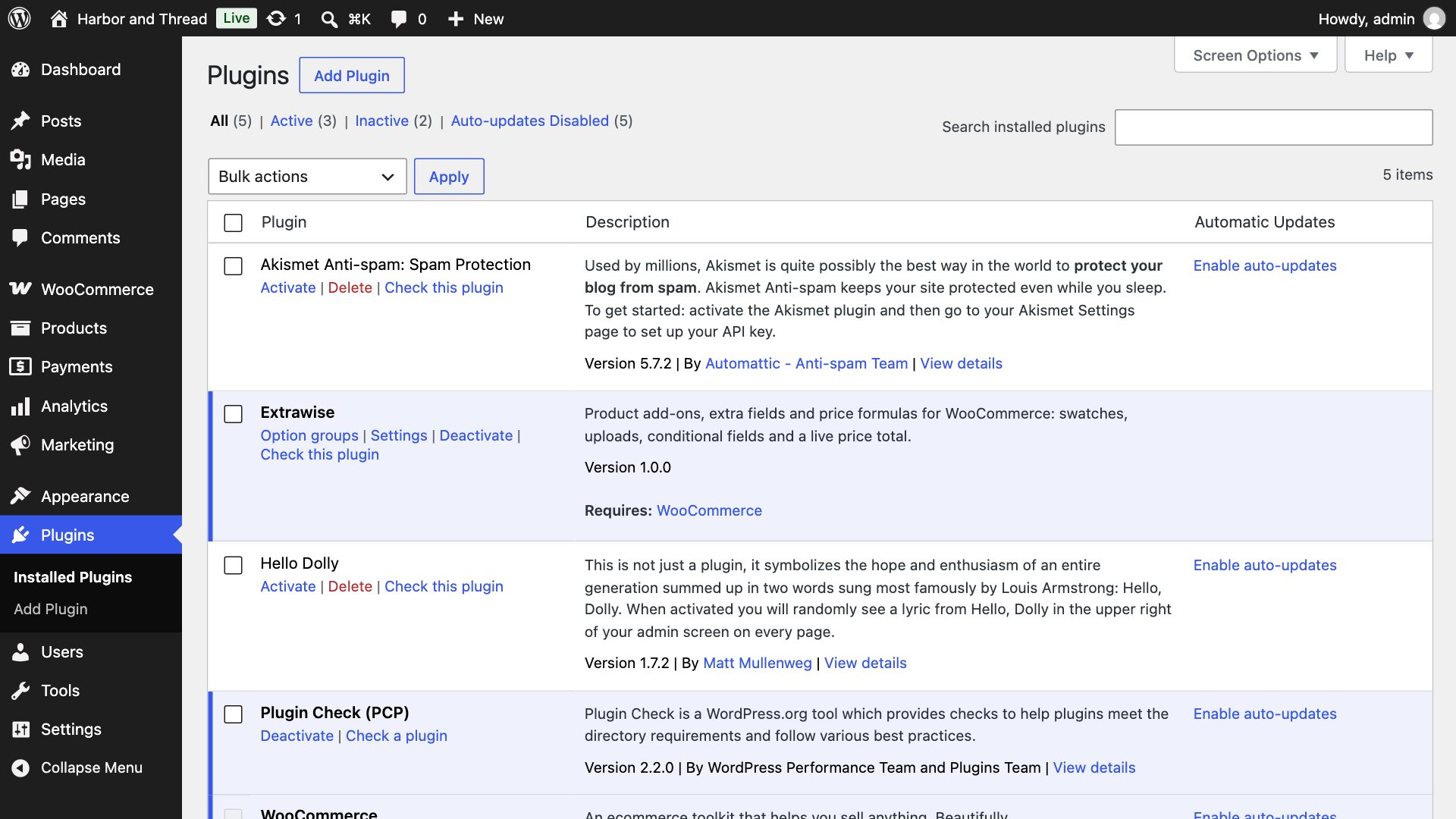
Install
- Unzip the package you downloaded. Inside it is
extrawise.zip: this is the plugin. Do not unzip it. - In WordPress, go to Plugins → Add New Plugin → Upload Plugin, choose
extrawise.zipand press Install Now. - Press Activate. WooCommerce must be active first.
- A notice links to Products → Extrawise. Open it to start.
Update
- Download the new version and unzip it to get the new
extrawise.zip. - Go to Plugins → Add New Plugin → Upload Plugin and upload it. WordPress asks to replace the current version: press Replace current with uploaded.
Your groups, settings, past orders and uploaded files stay as they are. You do not need to deactivate the plugin to update it. To be safe, export your groups first (Import and export).
1.4Your first group in five minutes
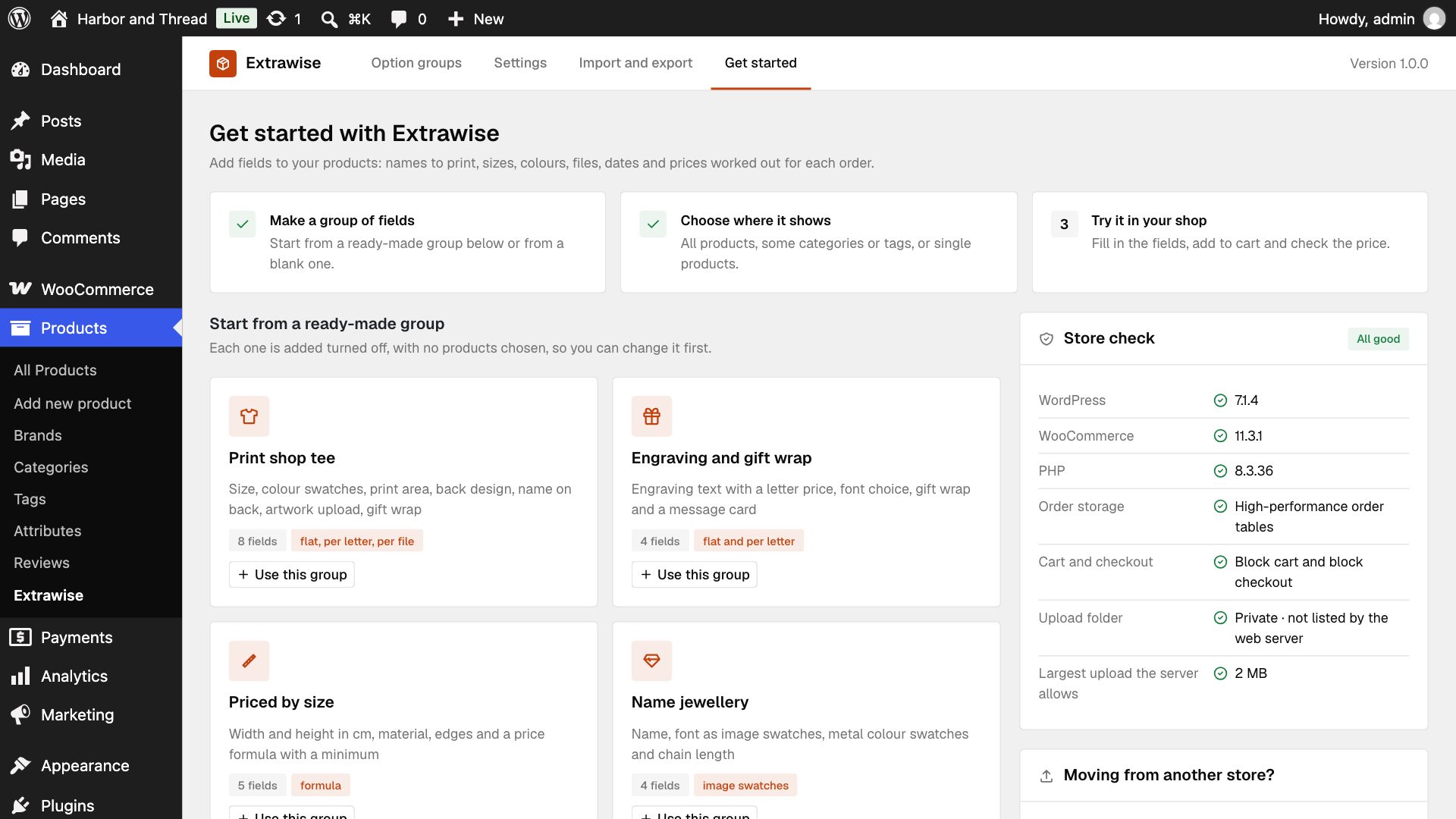
- Go to Products → Extrawise → Get started.
- Under Start from a ready-made group, press Use this group on the one closest to your product: Print shop tee, Engraving and gift wrap, Priced by size, Name jewellery, Rush production or Booking details. It is added turned off, with no products chosen, so nothing changes in your shop yet.
- The group opens in the editor. Change the labels, choices and prices to match your product (Group editor).
- Open the Visibility tab and choose the products, categories or tags that show the group (Where groups show).
- Turn the group on with the switch next to its title and press Save.
- Press Preview to open a matching product in your shop. Fill in the fields and watch the total change.
1.5Running costs
Extrawise has no running costs of its own. It makes no calls to outside services, needs no account or API key, and charges nothing per order or per upload.
You are responsible for any costs of running your own store: your hosting (uploaded files use your server's disk space), your domain, and any payment gateway, shipping or other plugins you choose, each at that provider's own pricing.
Option groups
2.1The groups list
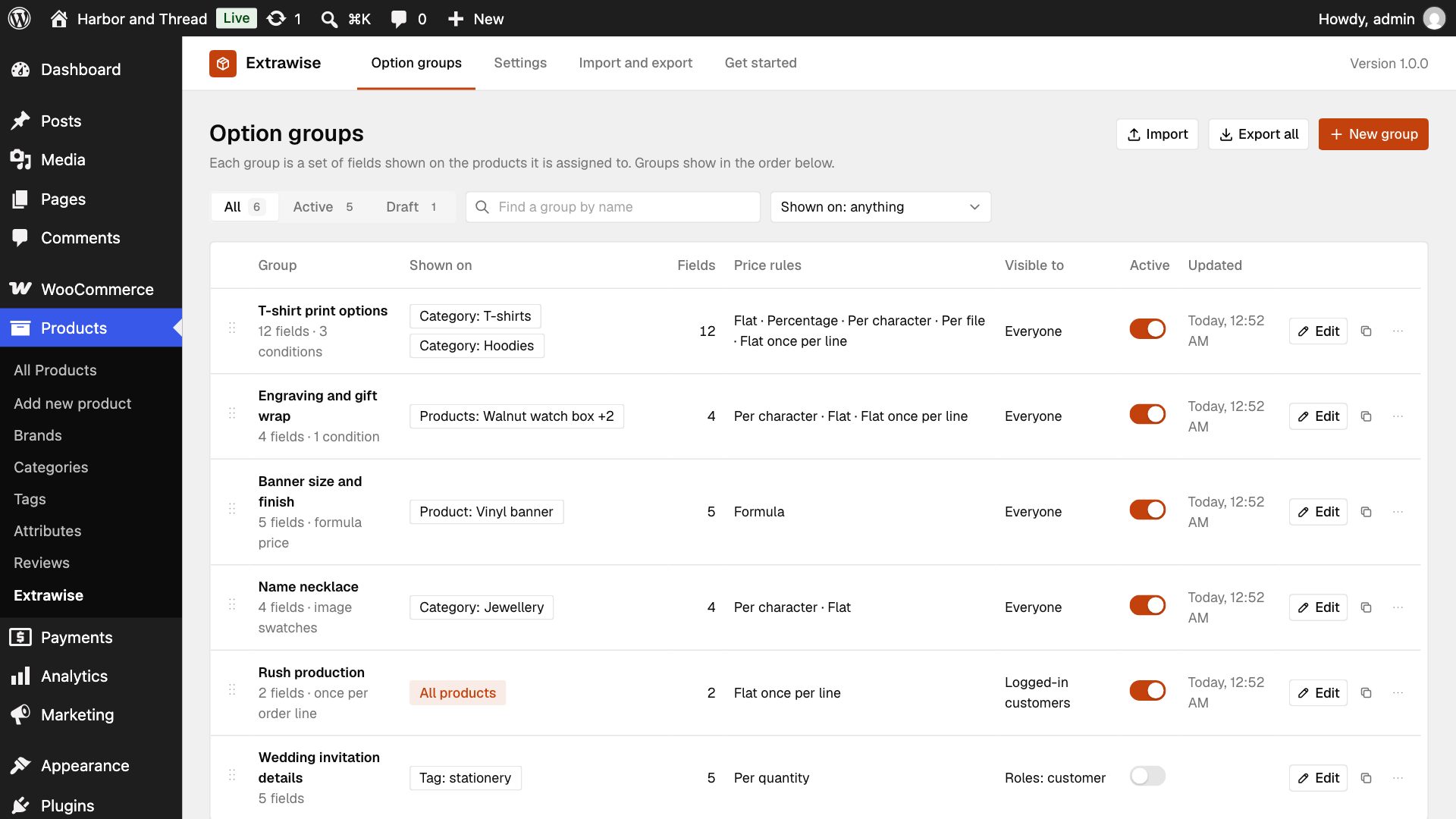
Go to Products → Extrawise. Each row is a group with where it shows, how many fields it has, the price rules it uses, who sees it and when it was last changed.
- Turn a group on or off with the switch in its row. An inactive group never shows.
- Change the order by dragging the handle at the left. When two groups show on the same product, the higher one shows first.
- Duplicate a group with the copy button; the copy is added turned off. The ⋯ menu has Export (one group) and Delete.
- Find a group by name, or filter by All, Active, Draft and by where it shows.
- Import and Export all move groups between stores (Import and export).
Under the list, store figures show the extra revenue from add-ons in the last 30 days, the most chosen paid option, how many products show a group and how much space uploads use.
2.2The group editor
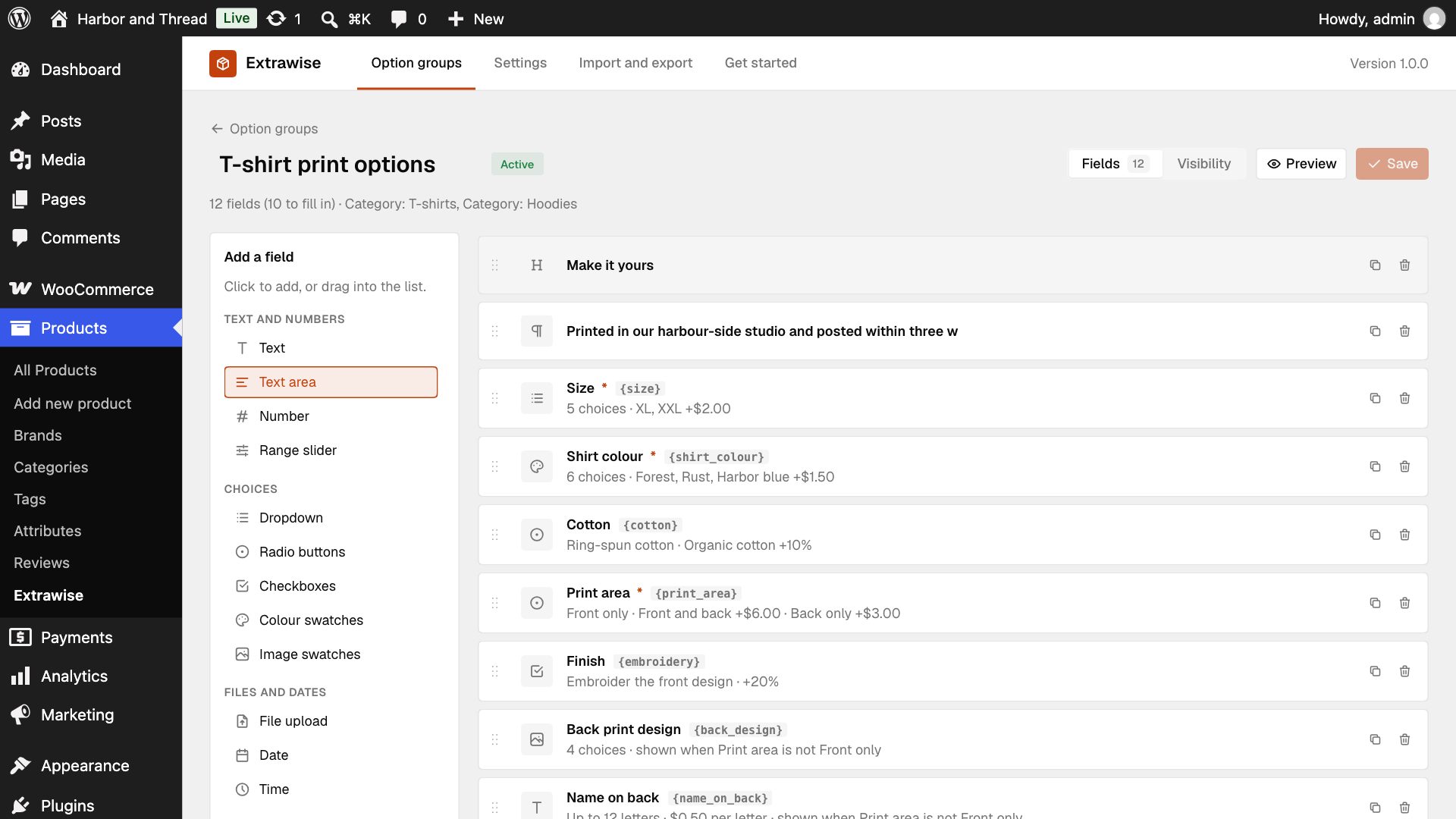
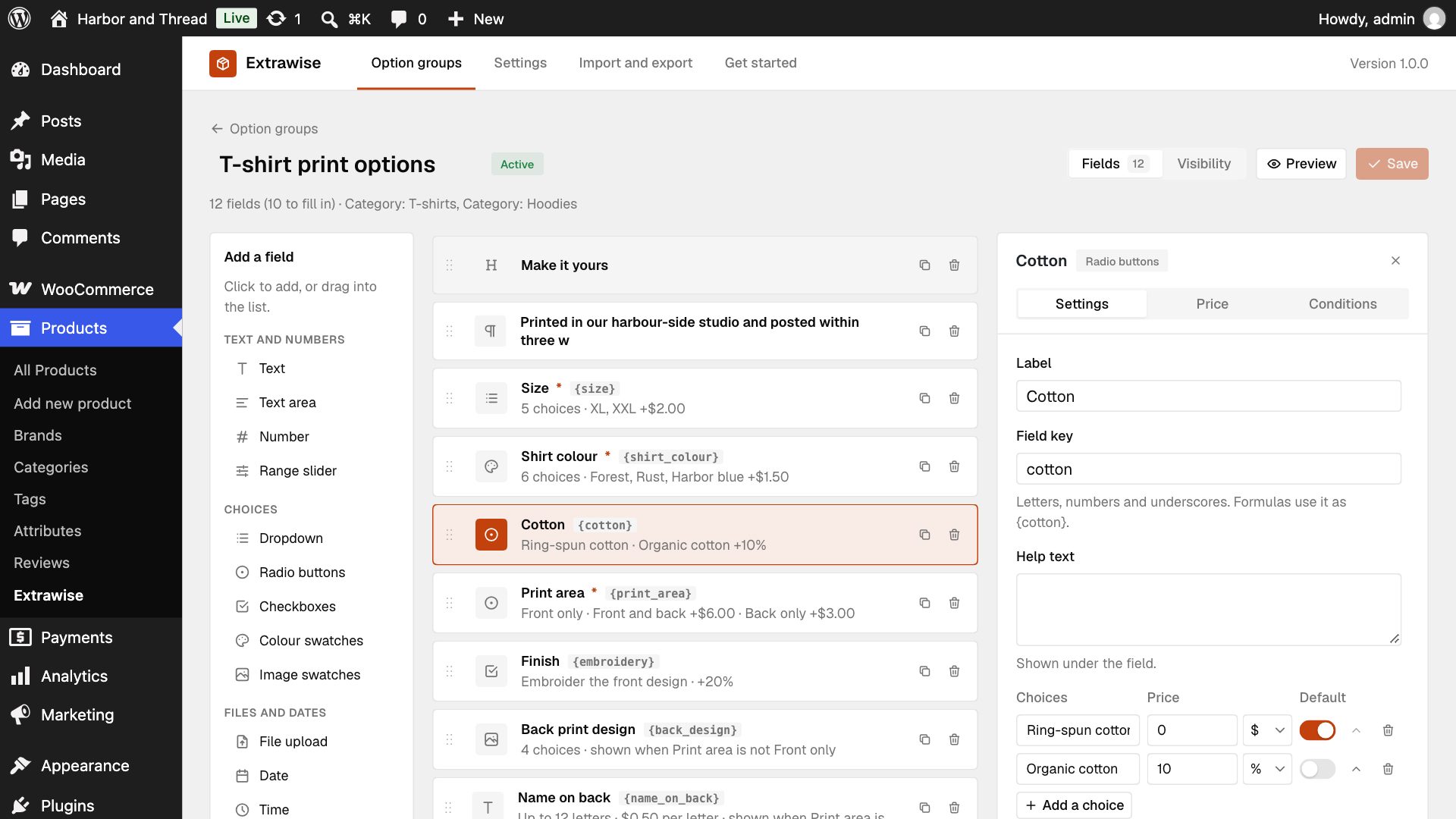
Press New group, or a group's name, to open the editor. It has three columns:
- Add a field (left): click a field type to add it at the end, or drag it to a place in the list.
- The field list (middle): fields show to shoppers in this order. Drag the handle to move a field; use the buttons to duplicate or delete it.
- The field panel (right): click a field to set it up. It has three tabs: Settings, Price (or Formula) and Conditions.
The tabs at the top switch between Fields and Visibility. Preview opens a matching product, and Save saves the group. If something is missing (a label, a choice, a formula that does not work), the editor says what and where, and does not save until it is fixed.
Settings every field has
| Setting | What it does |
|---|---|
| Label | The name shoppers see above the field, and in the cart and order. |
| Field key | A short name made of letters, numbers and underscores, such as name_on_back. Formulas use it as {name_on_back}. It is made from the label; change it only before you use it in a formula. |
| Help text | A line shown under the field. |
| Placeholder | Grey example text inside an empty text, number or dropdown field. |
| Required | The item cannot be added to the cart until the field is filled in. A field hidden by a condition is never required. |
| Starting value | The value the field has when the page opens (for choices: the Default switch on a choice). |
| Half row | Puts two half-row fields side by side on wide screens. On phones every field is full width. |
| Show in cart and order | Off keeps the answer out of the cart, emails and order, for example for a field that only feeds a formula. |
| Show price | Off hides the field's price next to its label and choices. |
2.3Field types
| Type | Use it for | Its own settings | Price rules |
|---|---|---|---|
| Text | A name, initials, a short message | Fewest and most characters; allowed characters (anything, letters, letters and spaces, letters and numbers, numbers only) | Flat, percentage, per character, formula |
| Text area | A longer message, delivery notes | As text | Flat, percentage, per character, formula |
| Number | Width, height, how many | Lowest, highest, step, unit (cm, pcs…) | Flat, percentage, per quantity, formula |
| Range slider | A size or amount on a slider, with a box to type in | Lowest (0), highest (100), step, unit | Flat, percentage, per quantity, formula |
| Dropdown | One choice from a long list | Choices, each with a price | Choice prices; flat, percentage, formula |
| Radio buttons | One choice from a few, shown as cards | Choices, each with a price | Choice prices; flat, percentage, formula |
| Checkboxes | Any number of choices; one choice makes a single tick box | Choices; fewest and most ticked | Choice prices; flat, percentage, formula |
| Colour swatches | Shirt colour, metal, thread | Choices, each with a colour and a price | Choice prices; flat, percentage, formula |
| Image swatches | Fonts, designs, patterns | Choices, each with an image from the media library and a price | Choice prices; flat, percentage, formula |
| File upload | Artwork, a photo, a logo | Allowed file types, largest file size, how many files (up to 10) | Flat, percentage, per file, formula |
| Date | A delivery or event date | Earliest and latest day (days from today), closed weekdays | Flat, percentage, formula |
| Time | A collection or booking time | Earliest and latest time, minutes between times | Flat, percentage, formula |
| Heading | A title that splits a long form | None | None |
| Paragraph | A note or instructions; links and bold are allowed | None | None |
| Price formula | A price worked out from other fields, not shown as an input | The formula | Formula |
A checkbox field with one choice shows as a single tick box, such as "Wrap it as a gift". Its price shows next to the box.
2.4Prices
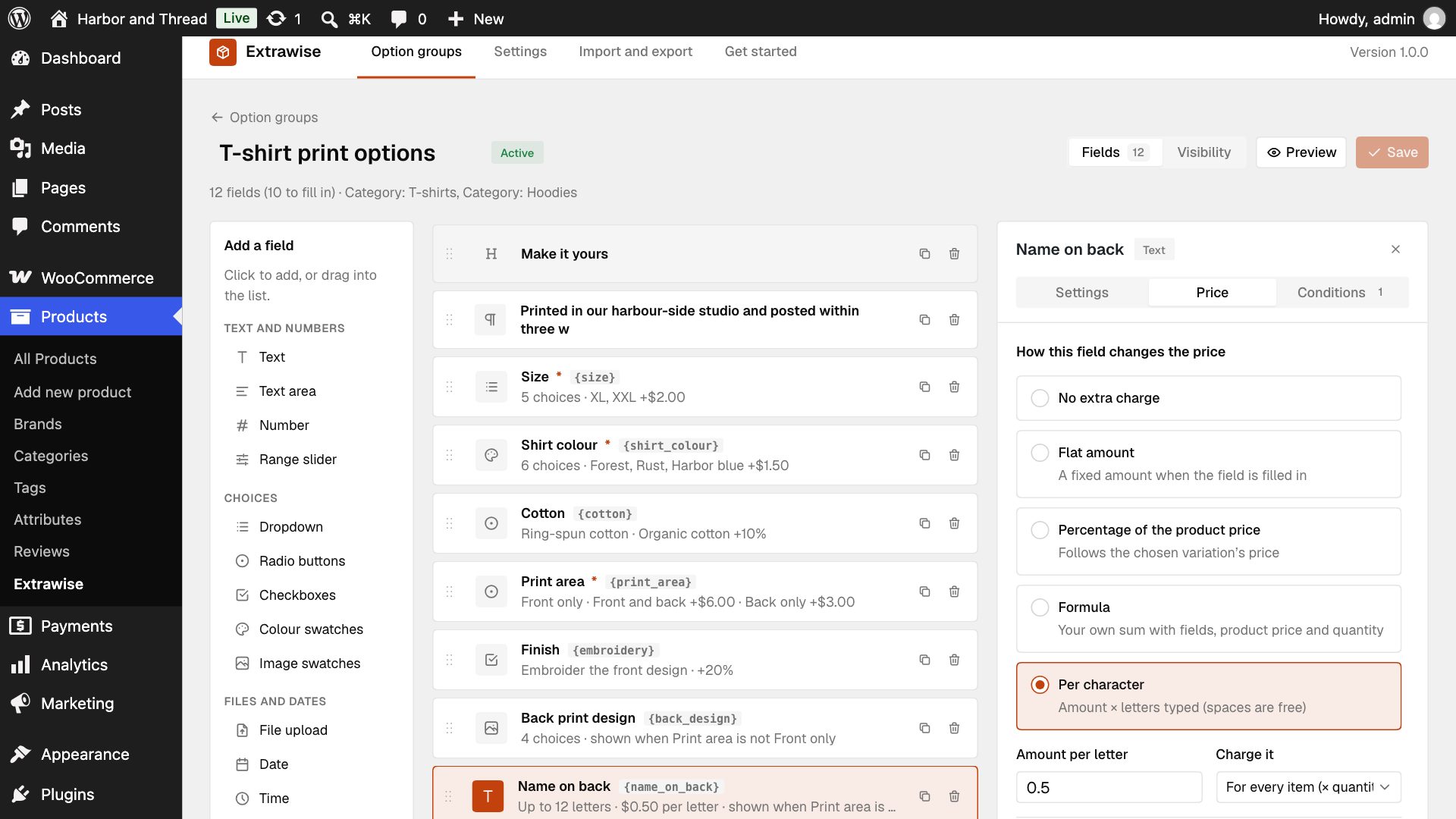
Open a field and its Price tab. Choose how the field changes the price:
| Rule | What it adds | Example |
|---|---|---|
| No extra charge | Nothing | A free gift message |
| Flat amount | A fixed amount when the field is filled in | Cuff print: +$3.00 |
| Percentage of the product price | A share of the product (or chosen variation) price | Embroidery: +20% |
| Per character | An amount for each letter typed; spaces are free unless you turn on Count spaces as letters | Name on back: $0.50 a letter |
| Per quantity | An amount times the number entered | Extra pages: $2.00 each |
| Per file | An amount for each file uploaded | Artwork: $3.00 a file |
| Formula | Your own sum (Formulas) | Banner: width × height × rate |
Choice fields (dropdown, radio buttons, checkboxes and swatches) also have a price on each choice, as a flat amount or a percentage. The field's own rule is added on top.
Charge it
- For every item (the default): the add-on price is added to each item, so 3 shirts pay it 3 times.
- Once for the order line: paid once however many items, such as a setup fee or gift wrap for the parcel. It shows in the cart and order as its own fee line.
Percentages follow the chosen variation: on a variable product, switching from a $22 to a $26 variation changes the add-on price too. Prices round to your store's number of decimals. Add-on prices are added to the product price, so the product's tax class and your tax display settings apply to them.
2.5Formulas
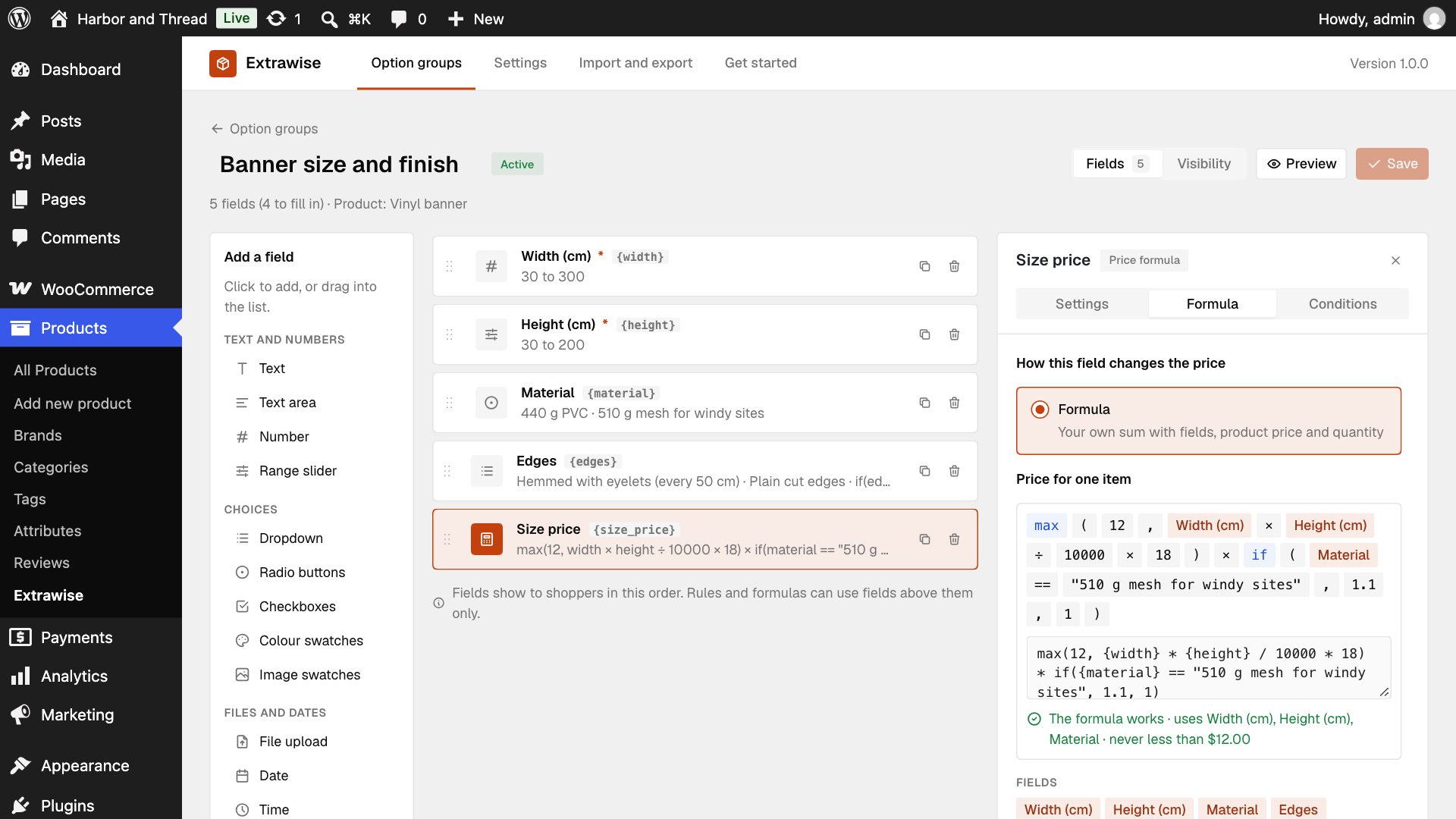
Choose Formula on the Price tab, or add a Price formula field. Click the chips under the box to add field names, store values, functions and operators, or type the formula yourself.
What a formula can use
| Part | Write it as | Value |
|---|---|---|
| Fields above this one | {width} | Numbers and sliders: the number. Checkboxes and files: how many are chosen. Choices: the chosen label as text. Text: the text. A price formula field: its price. |
| Product price | {product_price} | The price of the product or chosen variation |
| Quantity | {quantity} | How many items are added |
| Operators | + - * / ^ ( ) | Add, take away, times, divide, power, brackets |
| Comparisons | == != < > <= >= && || | Give 1 when true and 0 when false |
| Functions | min max round ceil floor abs if len | min(a, b, …), max(a, b, …), round(x, decimals), ceil(x), floor(x), abs(x), if(test, then, else), len(text) |
Example: a banner priced by size
max(12, {width} * {height} / 10000 * 18) * if({material} == "510 g mesh for windy sites", 1.1, 1)Width and height are in cm, so the area in m² is width × height ÷ 10,000. The banner costs $18 per m², never less than $12, and the mesh material adds 10%.
Under the box the editor says if the formula works and which fields it uses. If a field name is wrong or a bracket is missing, it says what to fix and the group does not save. A formula can only use fields above it, so a formula never loops.
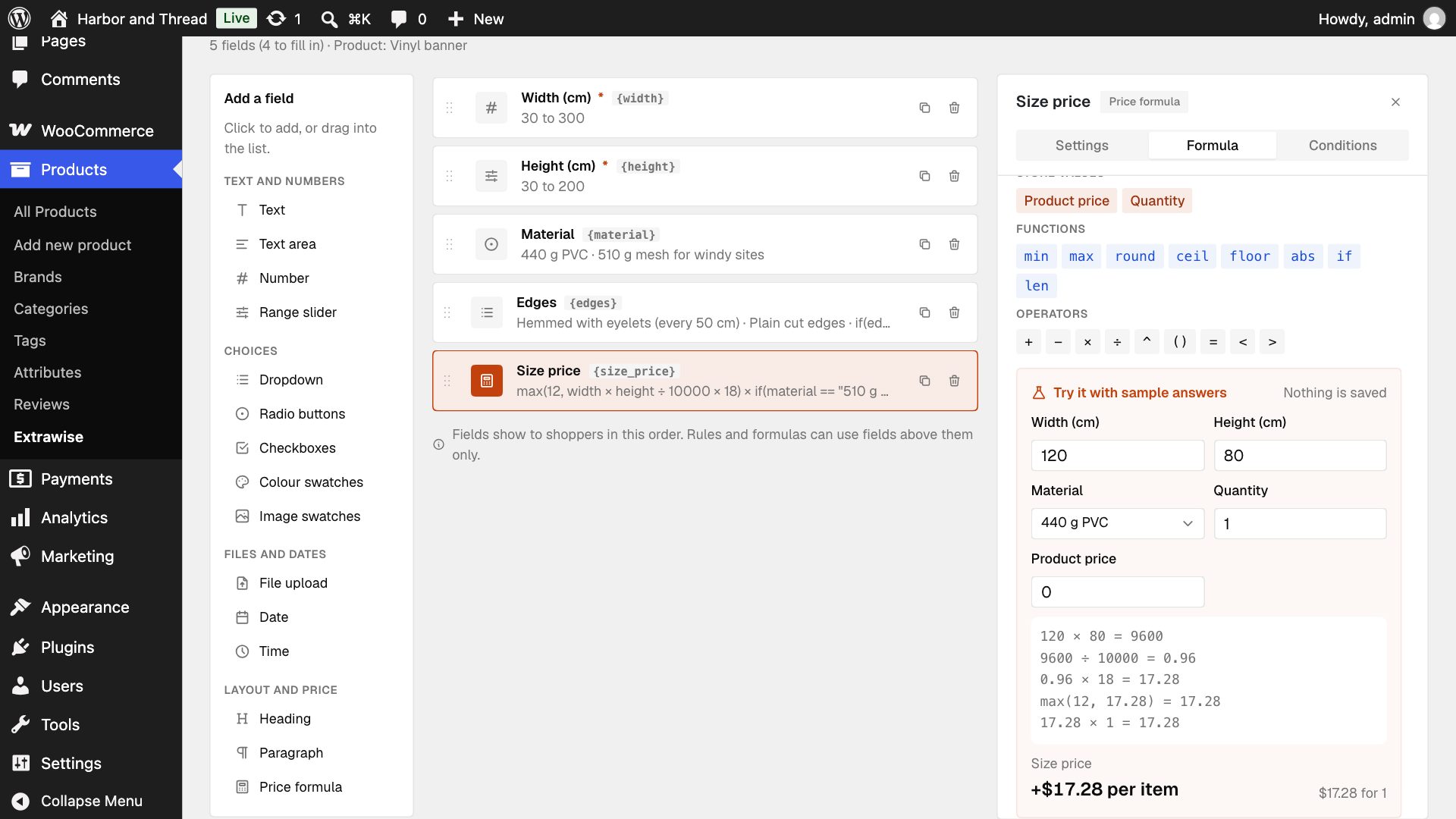
Try it
Under the chips, Try it with sample answers lets you type sample values and shows every step of the sum and the price. Nothing is saved.
When a shopper's answers make a formula impossible (for example a divide by zero), that field adds nothing rather than a wrong price. Use max() to set a lowest price.
2.6Conditions
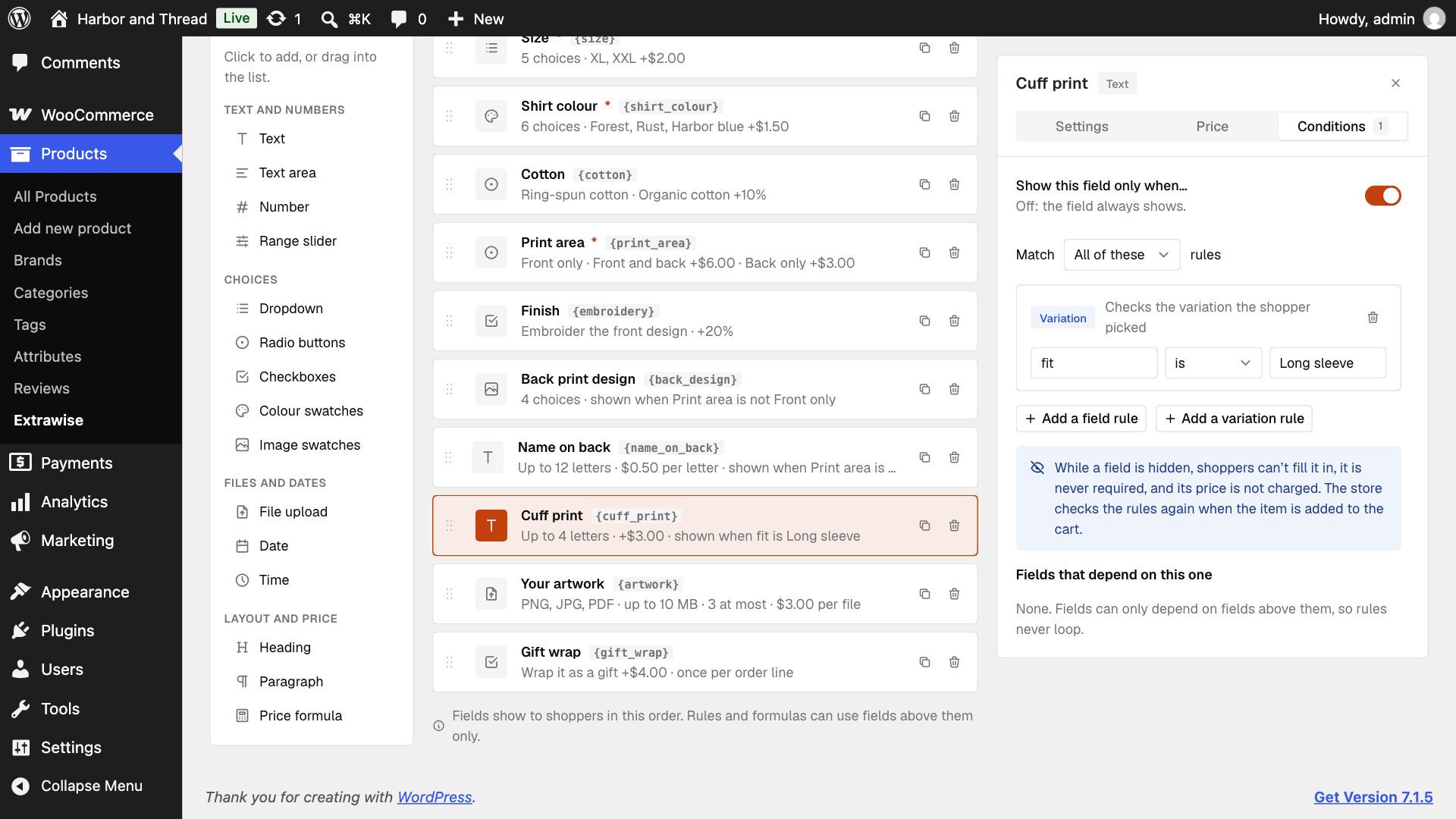
Open a field and its Conditions tab. Turn on Show this field only when…, choose whether All of these or Any of these rules must match, then add rules:
- Add a field rule: a field above this one is, is not, contains, is filled in, is empty, is more than or is less than a value.
- Add a variation rule: the variation the shopper picked, such as Fit is Long sleeve.
While a field is hidden it is never required and never charged. The store checks every rule again when the item is added to the cart, so a hidden field's answer is dropped even if the browser sends it. The panel also lists Fields that depend on this one.
2.7Where groups show
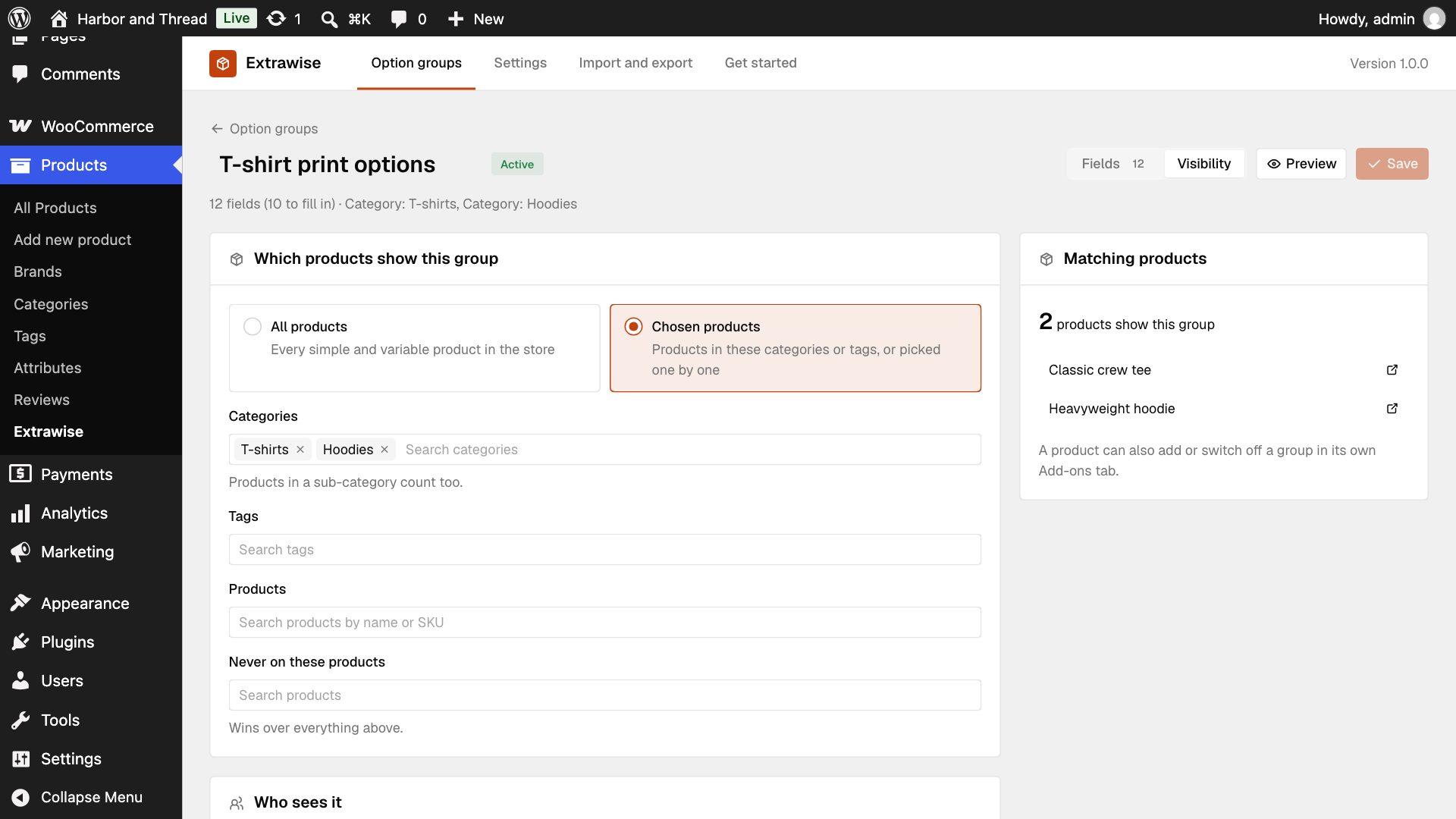
Open the Visibility tab of a group.
Which products show this group
- All products: every simple and variable product in the store.
- Chosen products: products in the categories or tags you pick (sub-categories count too), and products you pick one by one.
- Never on these products wins over everything above.
Matching products on the right lists the products that show the group right now.
Who sees it
Everyone, logged-in customers only, or chosen user roles (for example wholesale customers). Shoppers who cannot see a group cannot send answers for it either.
Look
Show or hide the group title, and place the group above or below the Add to cart button. The default place for new groups is in Settings.
2.8The Add-ons tab on a product
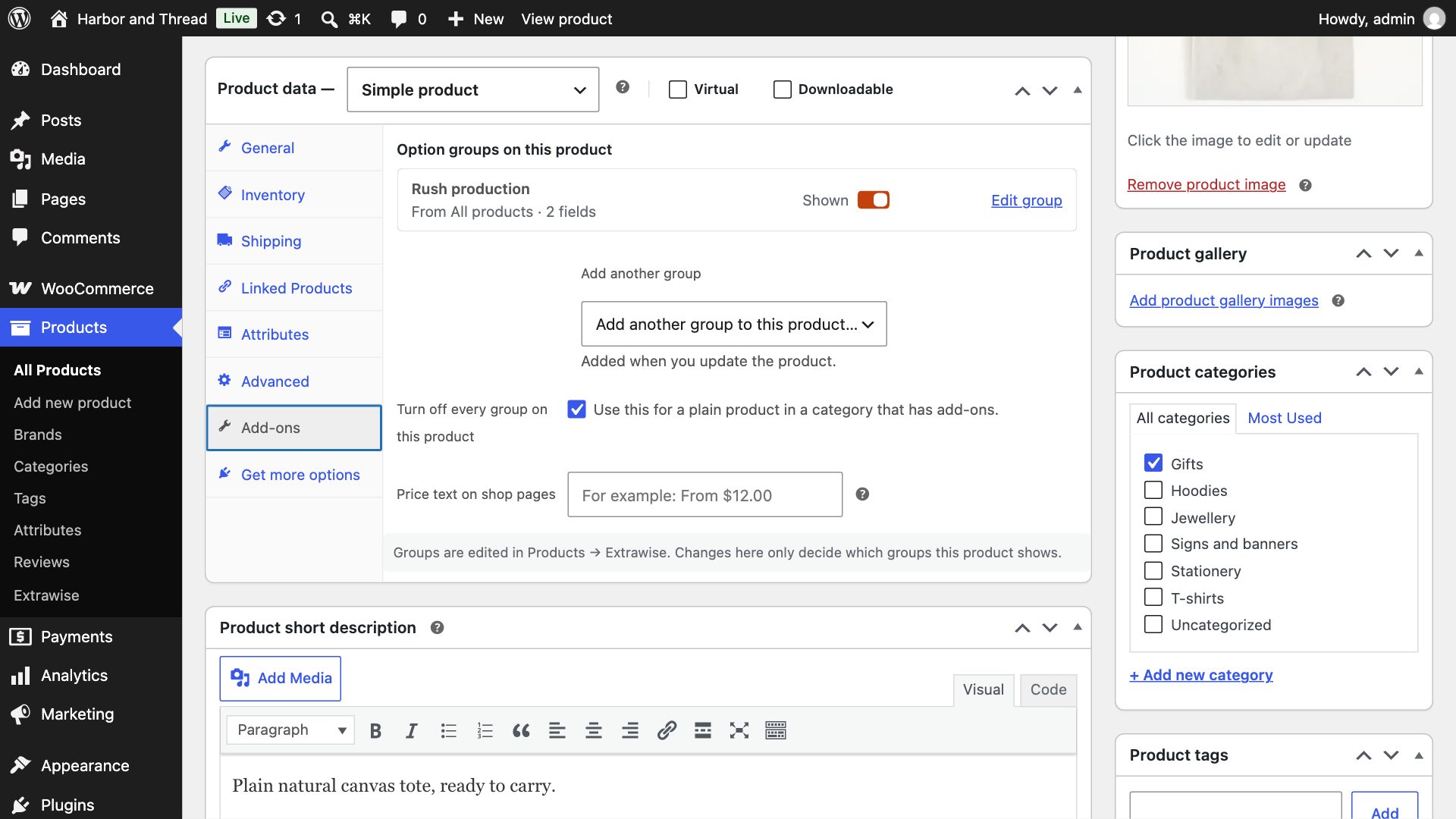
Edit any product and open Product data → Add-ons. It lists the groups that show on this product, with a switch to turn each one off for this product only and a link to edit the group.
- Add another group adds a group to this product even when its Visibility does not include it.
- Turn off every group on this product hides all add-ons, for example on a plain product in a category that has add-ons.
- Price text on shop pages replaces the price shown in the shop and category pages, such as "From $12.00".
Groups themselves are edited in Products → Extrawise; this tab only decides which groups this product shows.
What shoppers see
3.1The product page and live total
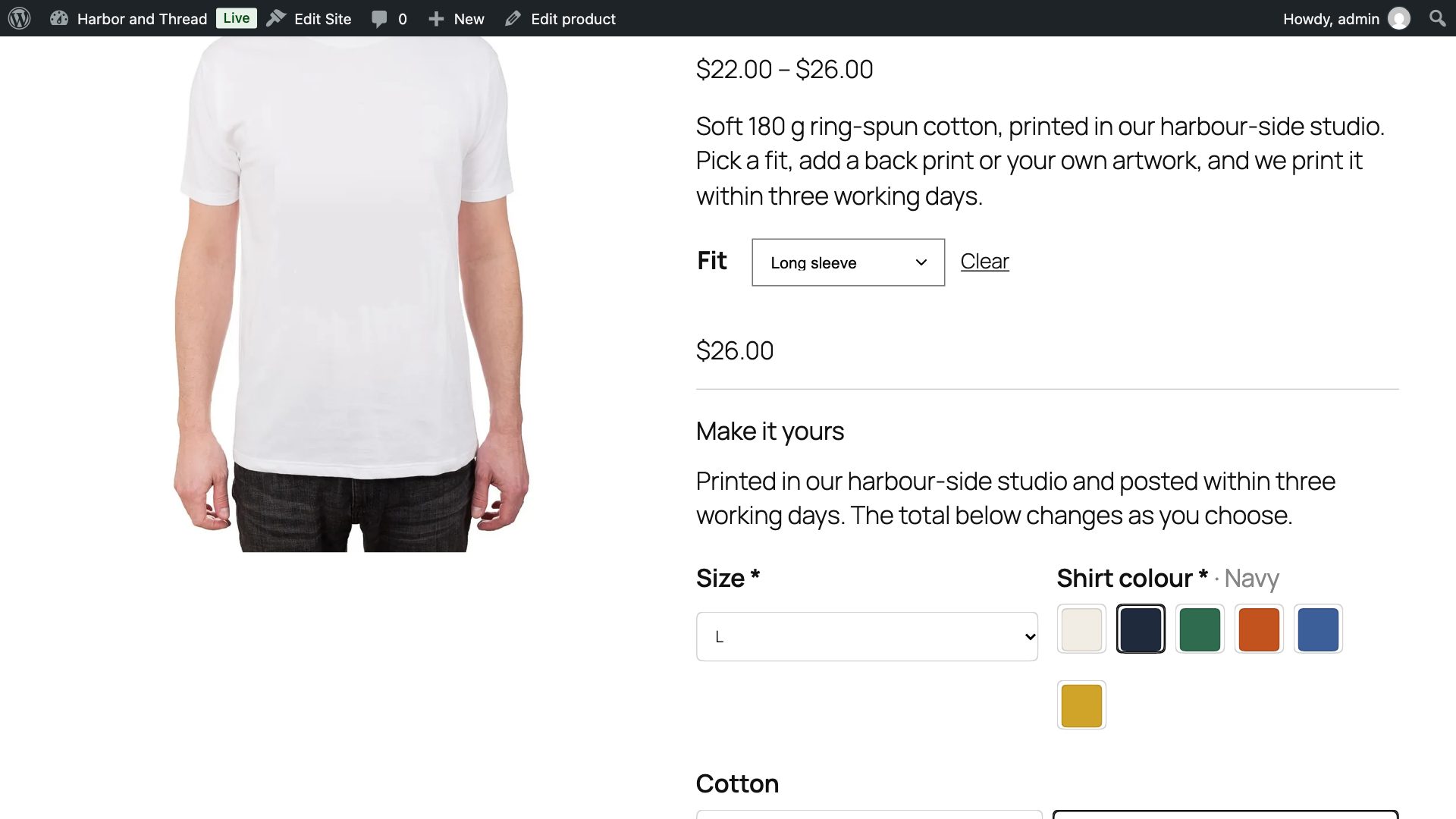
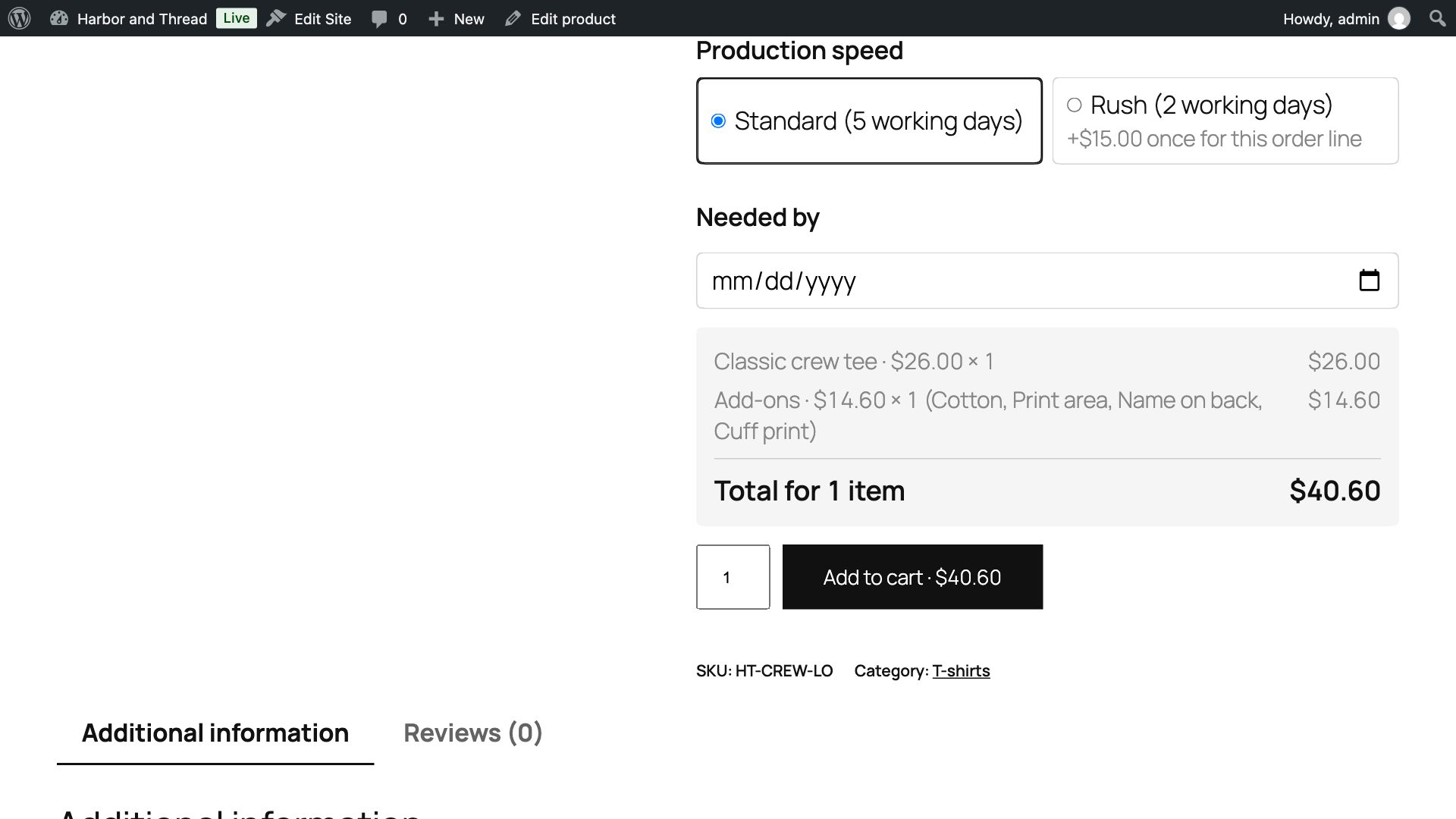
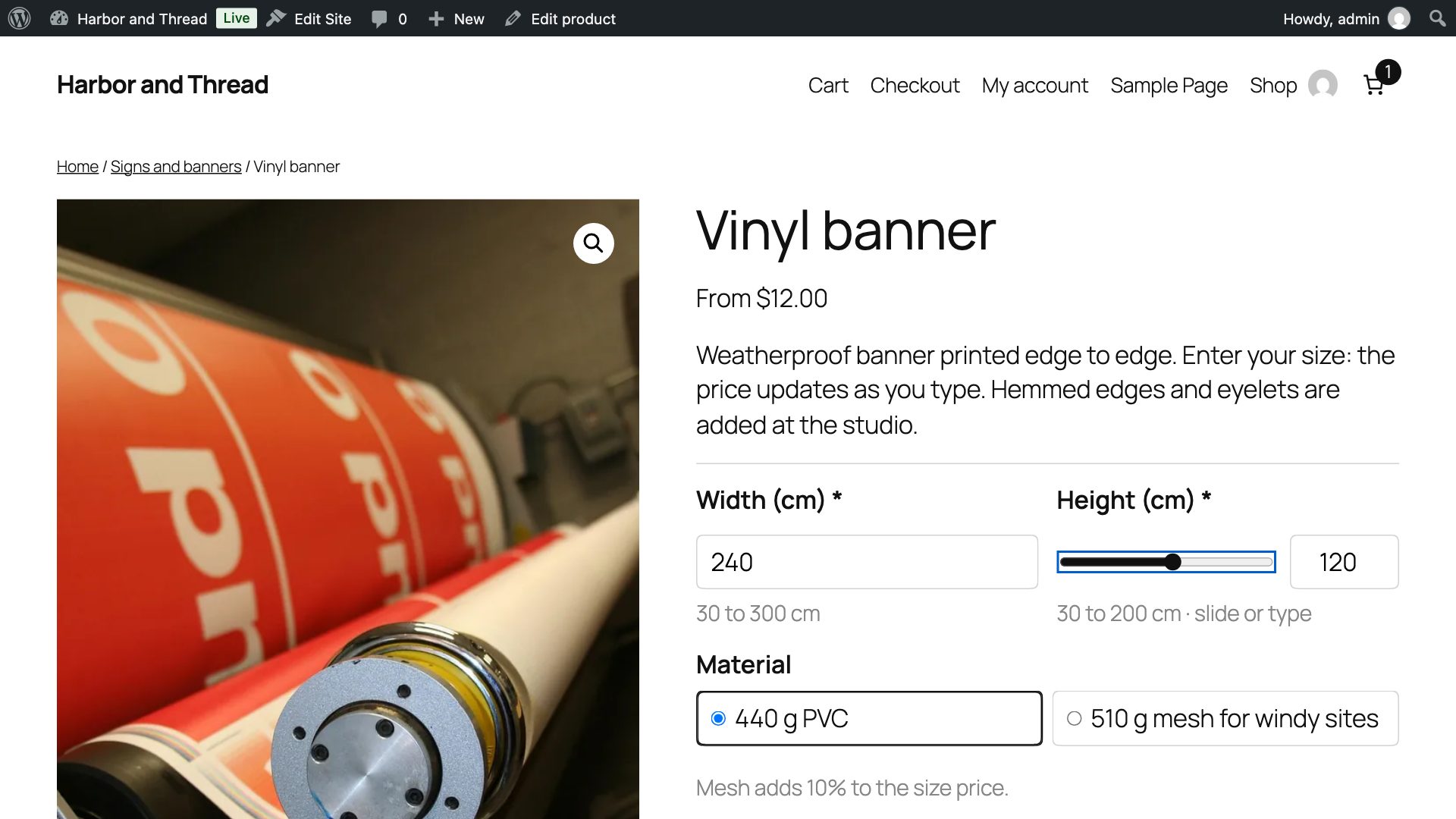
The fields show above the Add to cart button (or below it, if you chose that). Required fields have a *; choice prices show next to each choice, and a colour or image swatch shows the chosen name next to the label.
Under the fields, the total box shows the product, each add-on and the total for the chosen quantity, and the Add to cart button shows the total too. If a required field is empty, the shopper sees what is missing next to the field.
3.2Cart and checkout
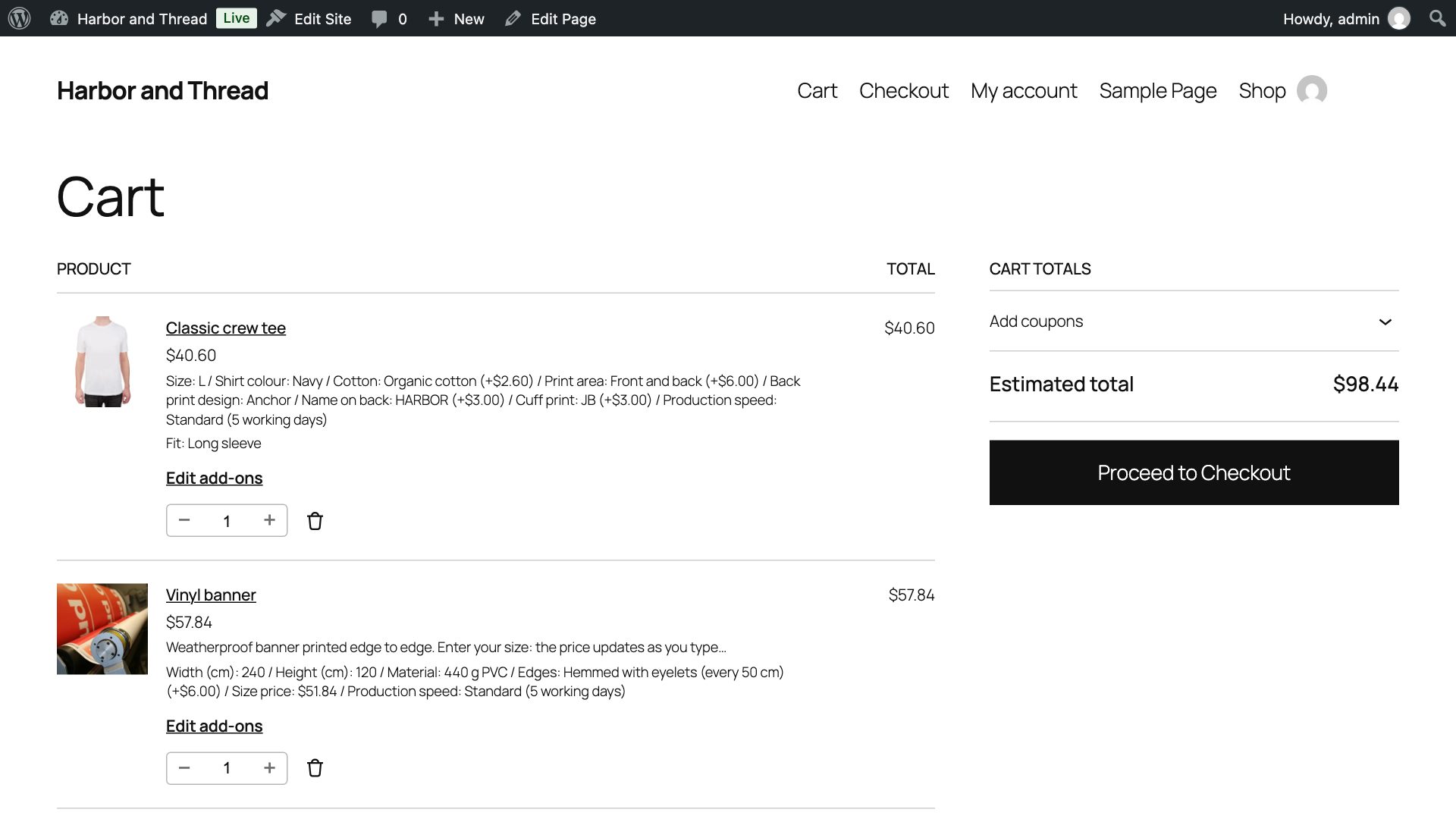
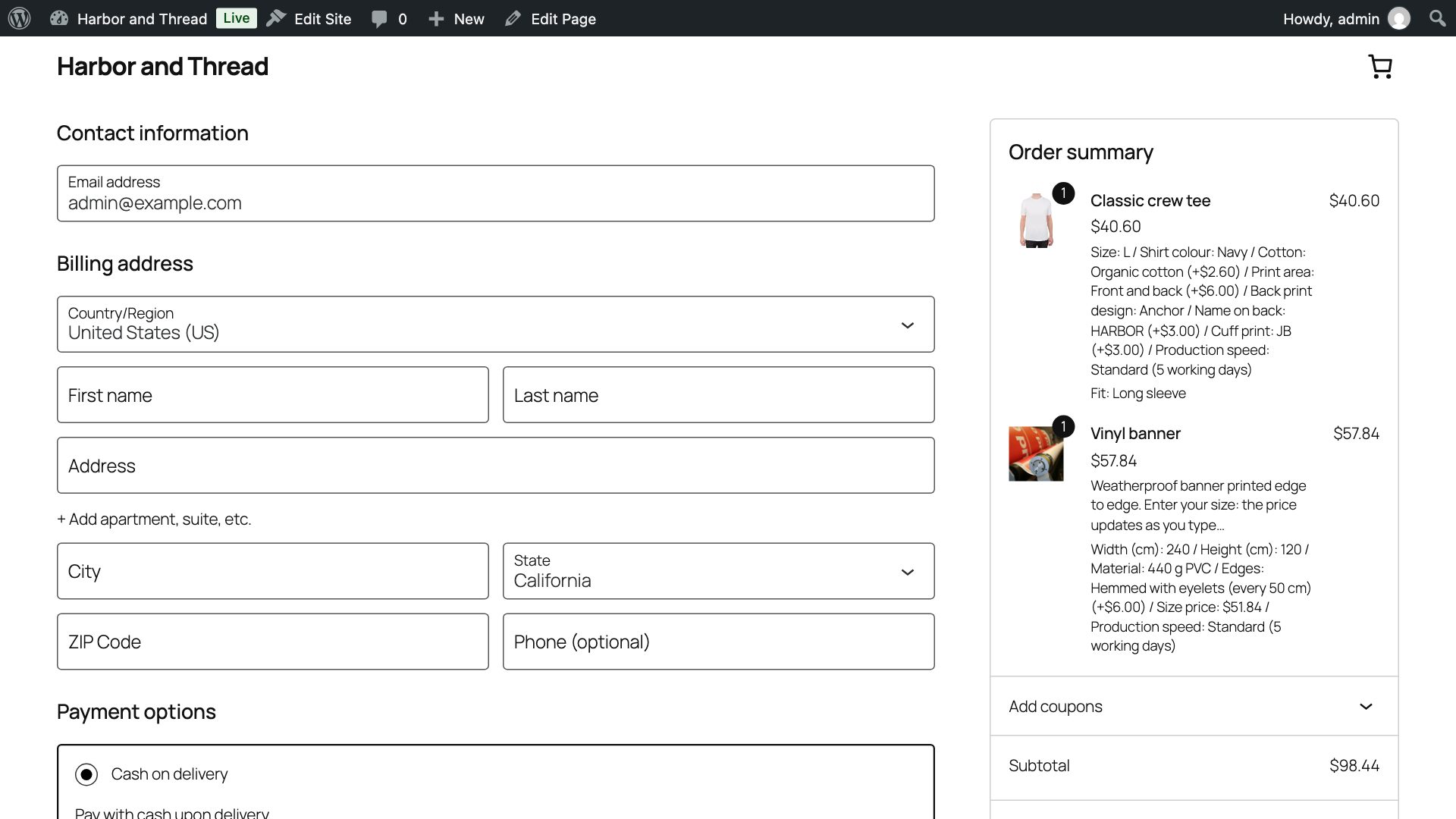
Each cart line lists its add-ons with their prices, in the block cart and checkout and in the classic ones, and in the mini-cart. A charge set to once for the order line shows as its own fee.
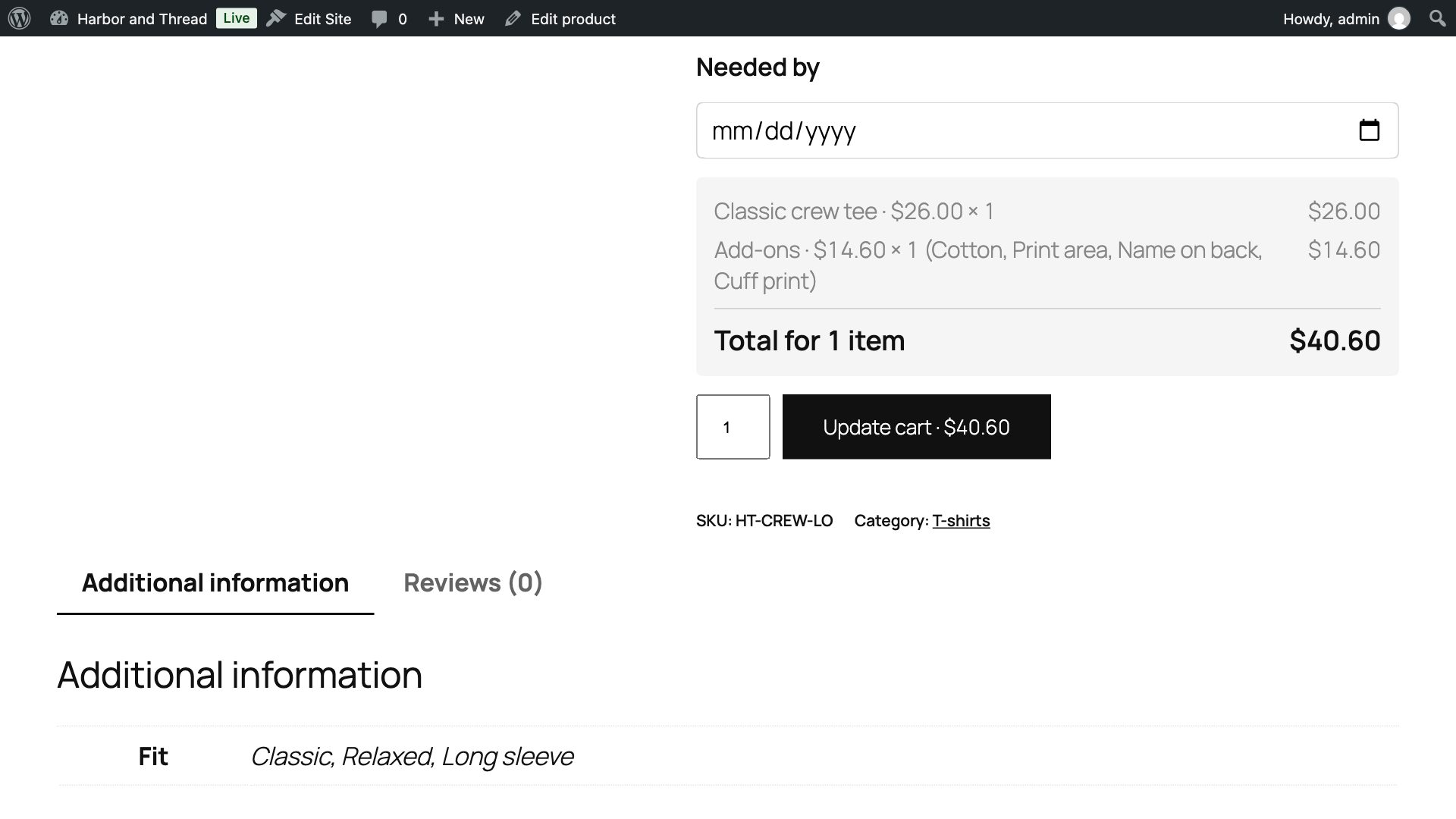
With Let shoppers edit add-ons from the cart on, each line has an Edit add-ons link. It opens the product with the answers filled in; the button reads Update cart and replaces the line.
3.3Orders, emails and My account
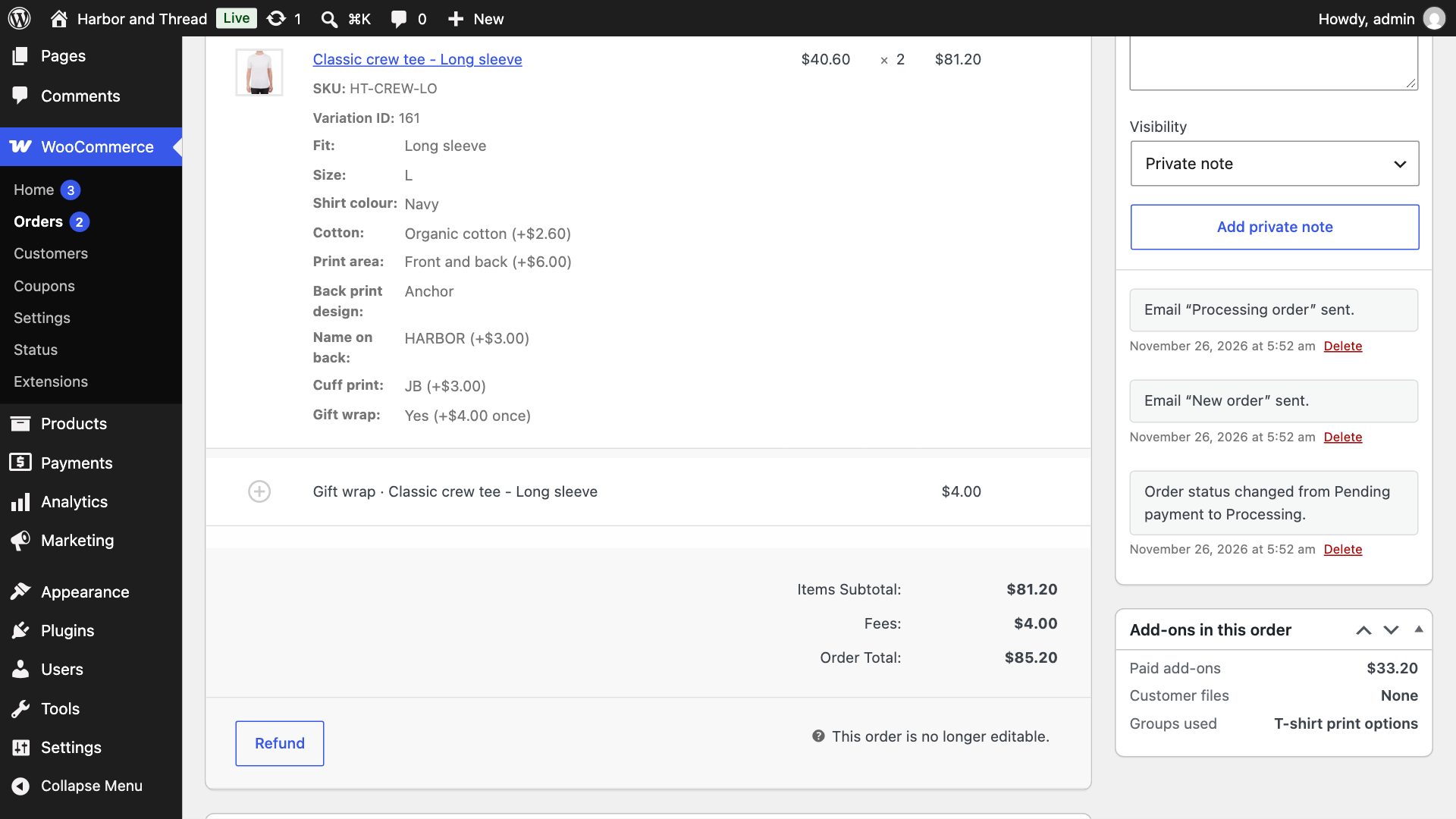
When the order is placed, every add-on is saved on the order line with its price. It shows in the order emails, in the shopper's My account → Orders, and on the admin order screen. Changing a group later never changes past orders.
On the admin order screen, the Add-ons in this order box sums up the paid add-ons, the customer's files and the groups used. Uploaded files have a download link for staff who can edit orders.
3.4Uploaded files
- Shoppers upload while they fill in the form; each file is checked for its real type, not only its name, and for the size limit.
- Files are stored in
wp-content/uploads/extrawise-files/with random names. The folder has an.htaccessfile that tells Apache not to list or serve it, and the store check on the Settings screen confirms the folder's protection files are in place. - Only staff who can edit orders can download a file, from the order screen.
- Files that never reach an order are deleted after 7 days. Files on orders are kept for the number of days you set in Settings (0 keeps them forever).
- Each visitor can upload up to 40 files an hour, so nobody can fill your disk.
Nginx does not read .htaccess files. Add location ^~ /wp-content/uploads/extrawise-files/ { deny all; } to your site's server block (or ask your host to), so the folder cannot be opened from a browser.
Store tools
4.1Settings
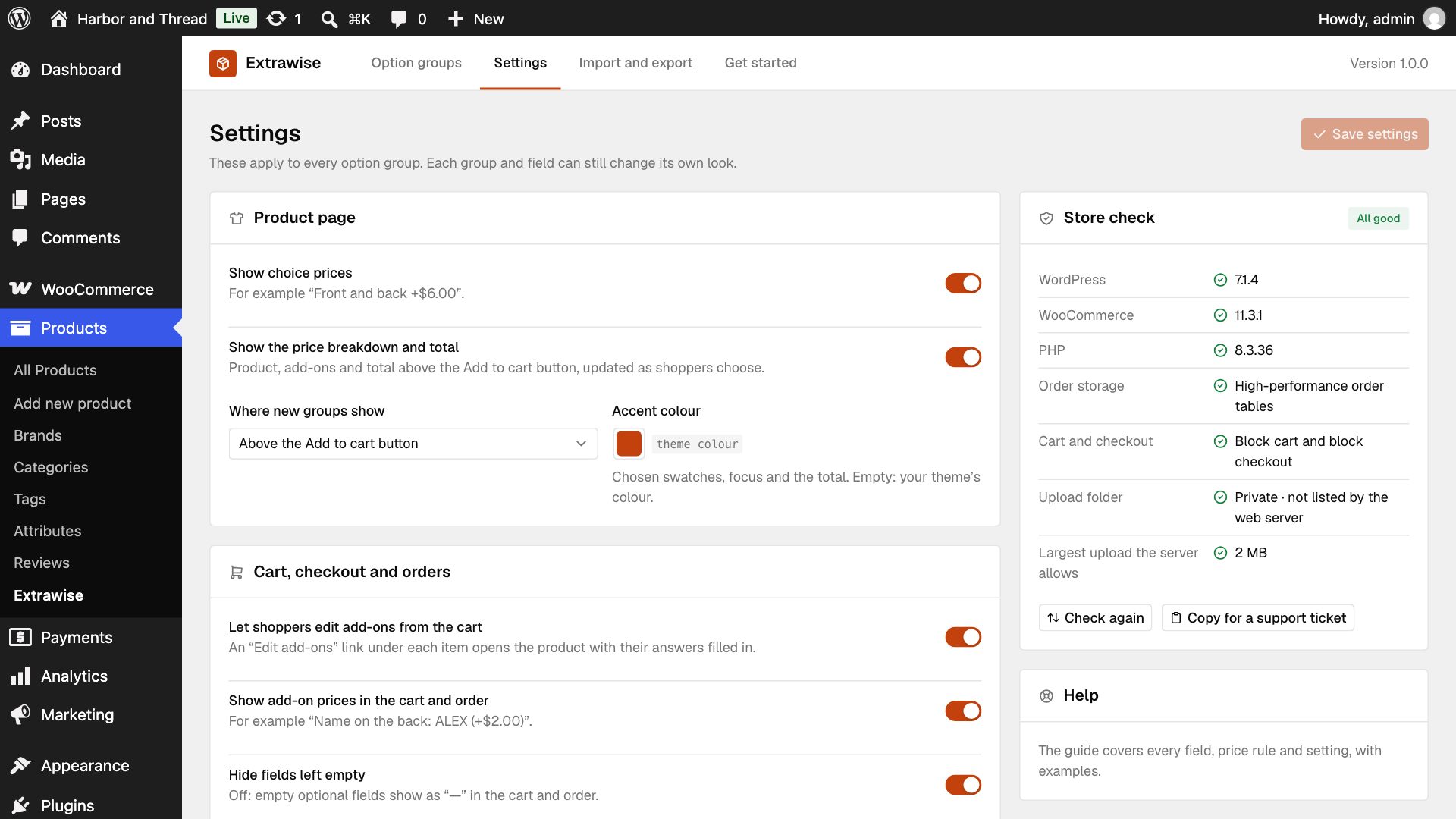
Go to Products → Extrawise → Settings. These apply to every group; each group and field can still change its own look.
| Setting | Default | What it does |
|---|---|---|
| Show choice prices | On | Shows prices next to choices, such as "Front and back +$6.00". |
| Show the price breakdown and total | On | Shows the total box above the Add to cart button. |
| Where new groups show | Above the Add to cart button | The place a new group starts with. |
| Accent colour | Your theme's colour | Colour of chosen swatches, focus and the total. |
| Let shoppers edit add-ons from the cart | On | Adds the Edit add-ons link to cart lines. |
| Show add-on prices in the cart and order | On | Shows "Name on back: ALEX (+$2.00)" instead of only the answer. |
| Hide fields left empty | On | Off shows empty optional fields as "—" in the cart and order. |
| Largest file (MB) | 10 | Cannot be more than your server allows. |
| Allowed file types | PNG, JPG, PDF | The types a file field can allow. |
| Keep order files for (days) | 90 | 0 keeps them forever. |
| Also delete groups, settings and uploaded files | Off | Removes Extrawise data when the plugin is deleted (Deactivate and delete). |
The Store check on the right checks your WordPress, WooCommerce and PHP versions, the order storage, the cart and checkout type, the private upload folder and your server's upload limit. Copy for a support ticket copies the results.
4.2Import and export
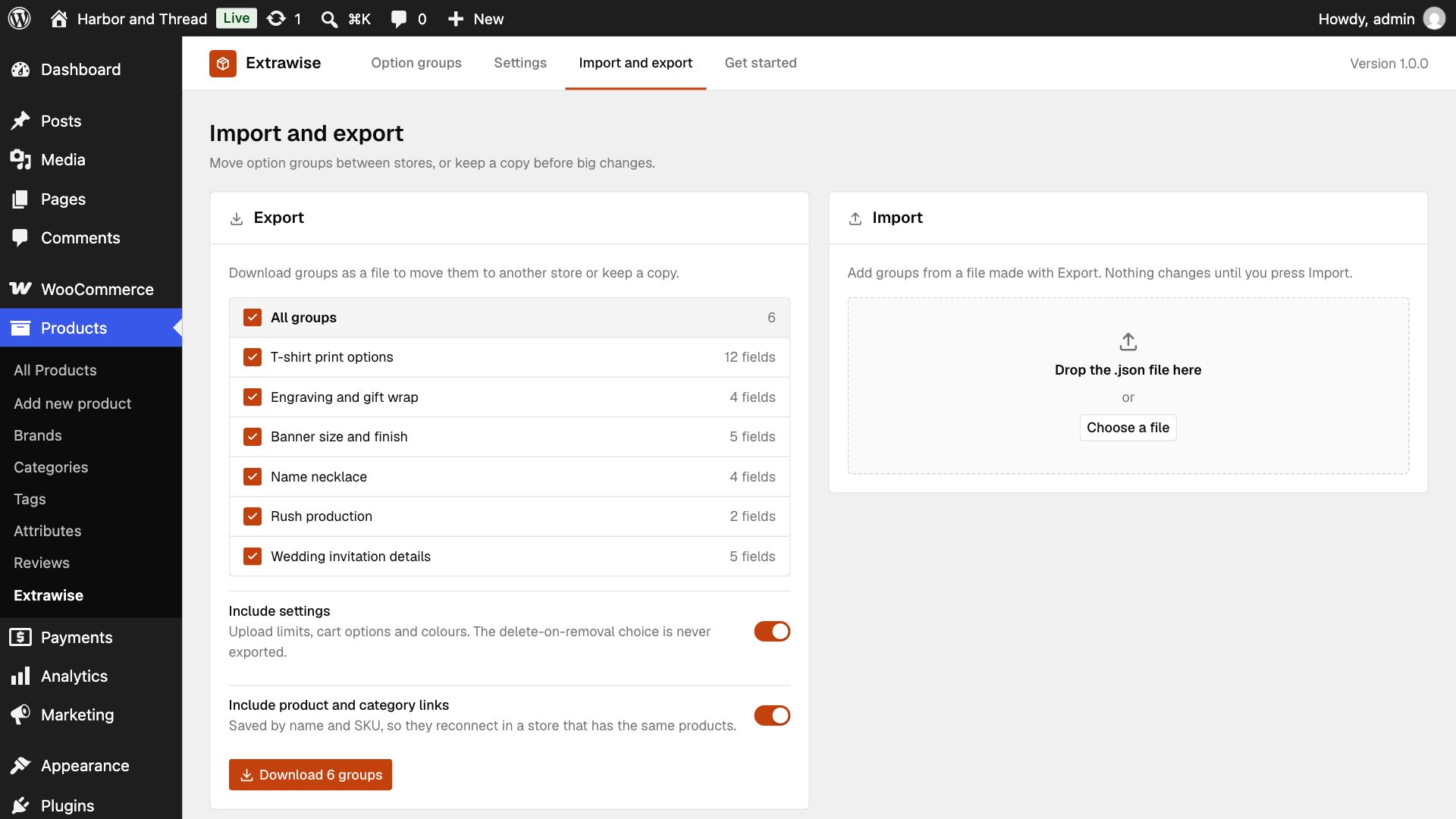
Go to Products → Extrawise → Import and export.
Export
- Tick the groups to export (all by default).
- Choose whether to include settings (the delete-on-removal choice is never exported) and the product and category links. Links are saved by name and SKU, so they reconnect in a store with the same products.
- Press Download to get a
.jsonfile.
Import
- Drop a
.jsonfile made with Export, or choose it. - Extrawise checks the file and lists what it found, and which of its products and categories are in this store. Nothing changes until you press Import.
- Choose the options: Import groups turned off (on by default, so you can check them before shoppers see them), Reconnect products and categories, and Also replace my settings with the file's.
- A group with the same name as one you have is imported with a new name, never over the top of yours.
4.3Translation, right-to-left and accessibility
- The plugin's own words are in
languages/extrawise.pot. Translate them with Loco Translate or Poedit, or with WordPress's language packs; the admin screens load their translations too. - Your group titles, labels, help text and choices are registered with WPML and Polylang string translation under "Extrawise". With WPML, translated products show the same groups as the product in your main language.
- Right-to-left languages are supported on the product page and in the admin screens.
- Accessible: every field has a label, required fields and errors are announced to screen readers, choices work with the keyboard, and focus is always visible.
Privacy and data
5.1Privacy and security
- Extrawise makes no calls to outside services and sends no data anywhere. It loads no outside fonts or scripts.
- The answers shoppers give are stored on their order, like any other order data. If your forms ask for personal details, mention them in your privacy policy.
- Every admin action checks the user's rights and a security token. By default, managing groups needs the Manage WooCommerce right (shop managers and administrators); developers can change this with the
extrawise_capabilityfilter. - Every answer is checked and cleaned on the server, and prices are worked out on the server from the saved group, never taken from the browser.
5.2Deactivate and delete
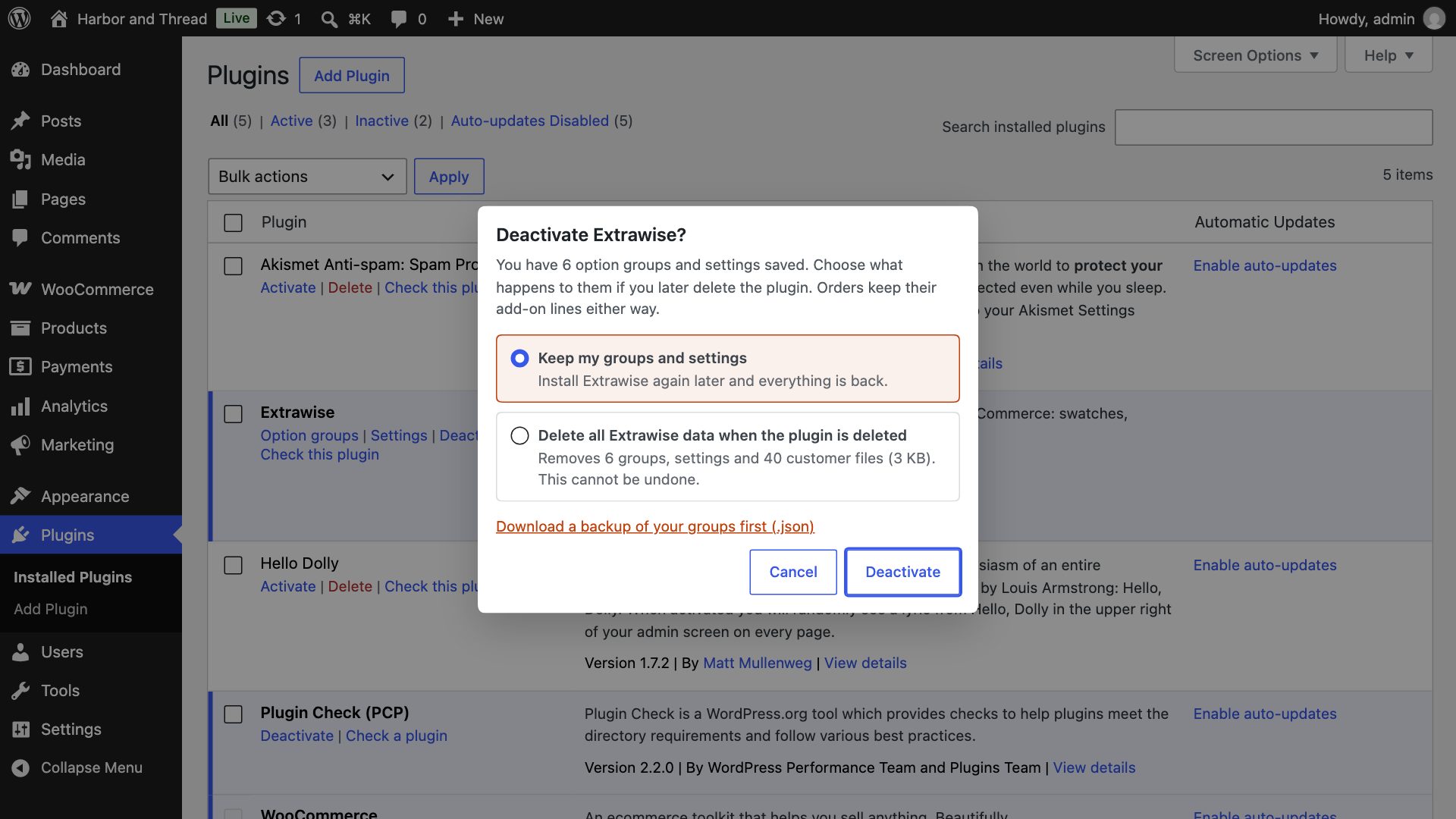
When you press Deactivate on the Plugins screen, Extrawise asks what should happen to its data if you later delete the plugin:
- Keep my groups and settings (the default): install Extrawise again later and everything is back.
- Delete all Extrawise data when the plugin is deleted: groups, settings and customer files are removed when you delete the plugin. This cannot be undone.
The prompt has a link to download a backup of your groups first. You can change the same choice later in Settings. Past orders keep their add-on lines either way.
For developers
6.1Hooks
Add these in a small plugin of your own or your child theme's functions.php, never in Extrawise's own files, so updates keep them.
| Filter | Arguments | Use it to |
|---|---|---|
extrawise_capability | string $capability (manage_woocommerce) | Change who can manage groups, settings and exports. |
extrawise_field_price | float $price, array $field, mixed $value, array $vars | Change one field's price after its rule is worked out. |
extrawise_groups_for_product | array $groups, WC_Product $product | Add or remove groups on a product. |
extrawise_product_types | array $types (simple, variable, variation) | Allow add-ons on other product types. |
extrawise_uploads_per_hour | int $max (40) | Change how many files one visitor can upload an hour. |
extrawise_docs_url | string $url | Point the Help buttons at your own guide. |
Example: a 10% add-on discount for wholesale customers
add_filter( 'extrawise_field_price', function ( $price, $field, $value, $vars ) {
	if ( in_array( 'wholesale_customer', wp_get_current_user()->roles, true ) ) {
		return $price * 0.9;
	}
	return $price;
}, 10, 4 );
Example: let editors manage option groups
add_filter( 'extrawise_capability', function () {
	return 'edit_others_posts';
} );6.2REST API
The admin screens use the REST namespace extrawise/v1. Every route needs a logged-in user with the Extrawise capability and a REST nonce (or an application password).
| Route | Methods | Does |
|---|---|---|
/groups | GET, POST | List groups, create a group |
/groups/{id} | GET, PUT, DELETE | Read, save or delete one group |
/groups/{id}/duplicate | POST | Copy a group (the copy is off) |
/groups/{id}/active | POST | Turn a group on or off |
/groups/order | POST | Save the order of groups |
/groups/match | POST | Products that a Visibility setting matches |
/settings | GET, PUT | Read or save settings |
/lookup | GET | Search products, categories, tags, roles and attributes for the pickers |
/export | GET | Export groups as JSON |
/import/check, /import | POST | Check, then import a JSON export |
/templates/{slug} | POST | Add a ready-made group |
/stats | GET | Store figures for the groups list |
/store-check | GET | Run the store check |
/uninstall | GET, POST | Read or save the keep/delete choice (needs the right to delete plugins) |
6.3Store API and order data
- Block cart and headless stores: each cart item in the WooCommerce Store API has
extensions.extrawisewithlines(the add-ons with their prices) andedit_url(the link to change them). - Order lines: each line item keeps its add-ons as visible meta (label → value), plus the hidden meta
_extrawise_answers(the saved answers) and_extrawise_lines(the priced add-on lines). - Orders: an order with add-ons has the hidden meta
_extrawise_total(all add-ons on the order) and_extrawise_groups. Both order stores are supported: High-Performance Order Storage and the older posts store. - Groups are saved as the private post type
extrawise_group; use the REST routes rather than reading posts directly.
6.4Build the admin from source
The plugin ships ready to use: the built admin app is in build/. Its source is in src/, with package.json and pnpm-lock.yaml. To change the admin screens:
cd wp-content/plugins/extrawise
pnpm install
pnpm run build     # or: pnpm run start, to rebuild as you edit
You need Node.js 20 or later and pnpm. The product page script and styles in assets/ are plain files and need no build. Changes to plugin files are lost when you update Extrawise, so keep a copy of your changes.
Help
7.1Troubleshooting
| Problem | What to check |
|---|---|
| A group does not show on a product | Is the group on? Does its Visibility match the product (see Matching products)? Is it off in the product's Add-ons tab? Is the product simple or variable? Does Who sees it include the shopper? |
| The total box does not show | Check that Show the price breakdown and total is on in Settings. A caching or script-combining plugin may hold an old copy: clear its cache. |
| The price in the cart differs from the preview | The cart price is the store's own sum and always wins. Check the product's sale price, tax display settings, and any plugin that changes cart prices. |
| Uploads fail | Open the store check: the largest upload your server allows may be smaller than the field's limit. Raise upload_max_filesize and post_max_size with your host. |
| The store check says the upload folder is not private | Extrawise could not write its protection files: check that wp-content/uploads is writable, then press Check again. On Nginx, also add the rule in Uploaded files. |
| A formula field adds nothing | Use Try it with the same answers to see each step. A divide by zero or a missing value makes a formula add nothing. |
7.2FAQ
Do the prices include tax?
Add-on prices are added to the product price, so the product's tax class and your store's price display settings apply to them too.
Can a shopper change the price in the browser?
No. The browser only shows a preview. The store works out every add-on price again from the saved answers when the item is added, when the cart loads and at checkout.
Does it work with variable products?
Yes. Fields can show only for some variations, and percentages follow the chosen variation's price.
Does it work with the block cart and checkout?
Yes, and with the classic cart and checkout shortcodes and the mini-cart.
Can I use the same group on many products?
Yes. Show it on all products, on categories or tags, or on chosen products, and turn it off on single products.
What happens to my data when I delete the plugin?
Nothing, unless you chose to delete it in the deactivate prompt or in Settings. Past orders keep their add-on lines either way.
7.3Screenshots
7.4Credits and licences
- Extrawise is licensed under the GNU General Public License v2 or later.
- Geist font by Vercel, SIL Open Font License 1.1 (
src/fonts/OFL.txt), used in the admin screens. github.com/vercel/geist-font - @wordpress/scripts and WordPress components, GPLv2 or later. github.com/WordPress/gutenberg
- The product photos in the screenshots are from our demo store only and are not included in the download.
WooCommerce is a trademark of Automattic Inc. Extrawise is not affiliated with Automattic.
7.5Changelog
1.0.0 · 26 November 2026
- First release.
7.6Support and licence
Questions and bug reports go through the Support tab on the item's page. Include the store check results (Settings → Store check → Copy for a support ticket) so we can help faster.
Updates are free. Each licence covers one website; see the marketplace's licence terms for the details.